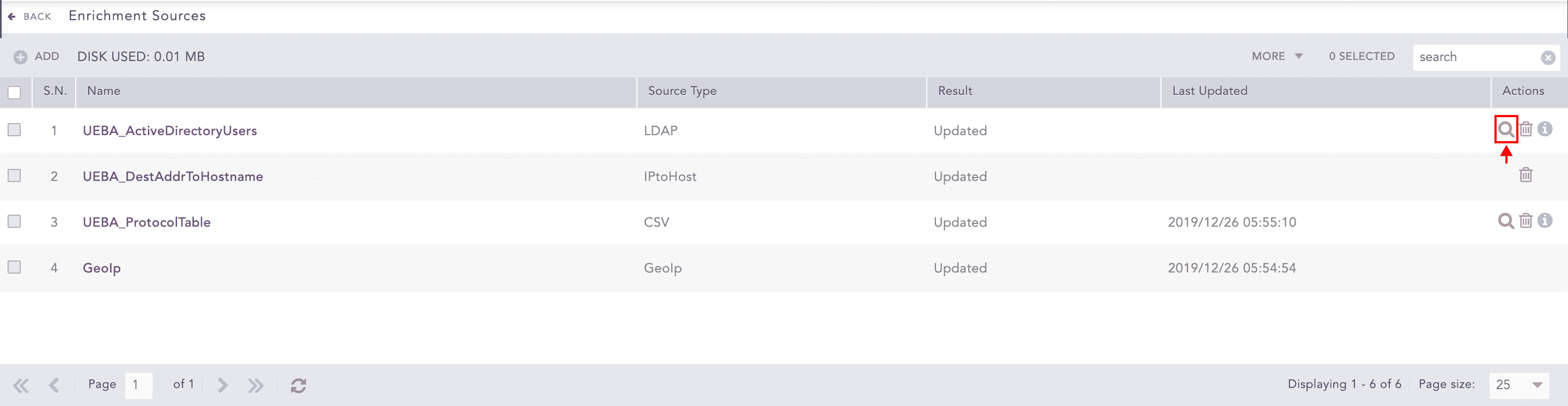
Enrichment Sources maintain the information that you can use to enrich your logs. Logpoint currently supports the following type of enrichment sources:
LDAP: You can use the LDAP (Lightweight Directory Access Protocol) enrichment source to enrich logs with the additional information of users extracted from the LDAP server. Go to LDAPEnrichmentSource Guide for more details.
GeoIP: You can use the GeoIP enrichment source to enrich logs with the geographical information of a public IP address. Go to GEOIP Guide for more details.
CSV: You can use the CSV enrichment source to enrich logs from data present in a Comma Separated Values (CSV) file. Go to CSVEnrichmentSource Guide for more details.
IPtoHost: You can use the IPtoHost enrichment source to enrich logs with a reliable hostname. Go to Adding IPtoHost as an Enrichment Source for more details.
ODBC: You can use the ODBC (Open Database Connectivity) enrichment source to look up the data in a database server and enrich the incoming logs. Logpoint supports the PostgreSQL, MSSQL, and MySQL databases. Go to Adding ODBC as an Enrichment Source for more details.
Threat Intelligence: You can use the Threat Intelligence enrichment source to enrich logs with the information gathered from various threat intelligence sources. Go to Threat Intelligence Guide For Logpoint for more details.
Enrichment Sources
Note
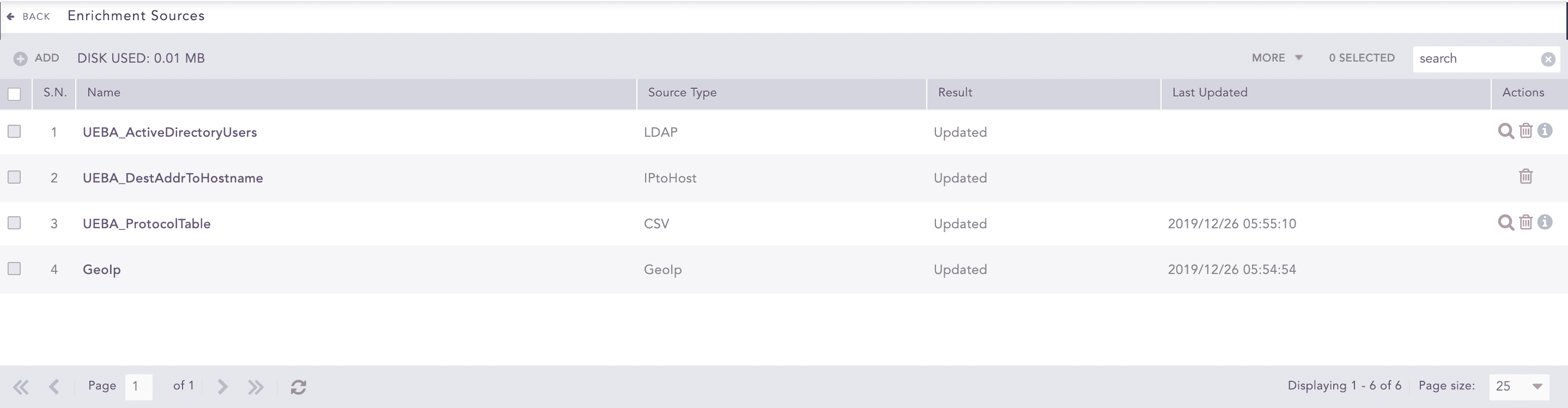
Depending on the file size, the enrichment sources may still appear in the list after being deleted. In this case, you need to click Refresh to view the updated list.
Plugins associated with the enrichment sources must be available before adding an enrichment source. For example, to add an ODBC enrichment source, the ODBC plugin must be present in Logpoint.
The total size for the enrichment sources is set to 4 GB.
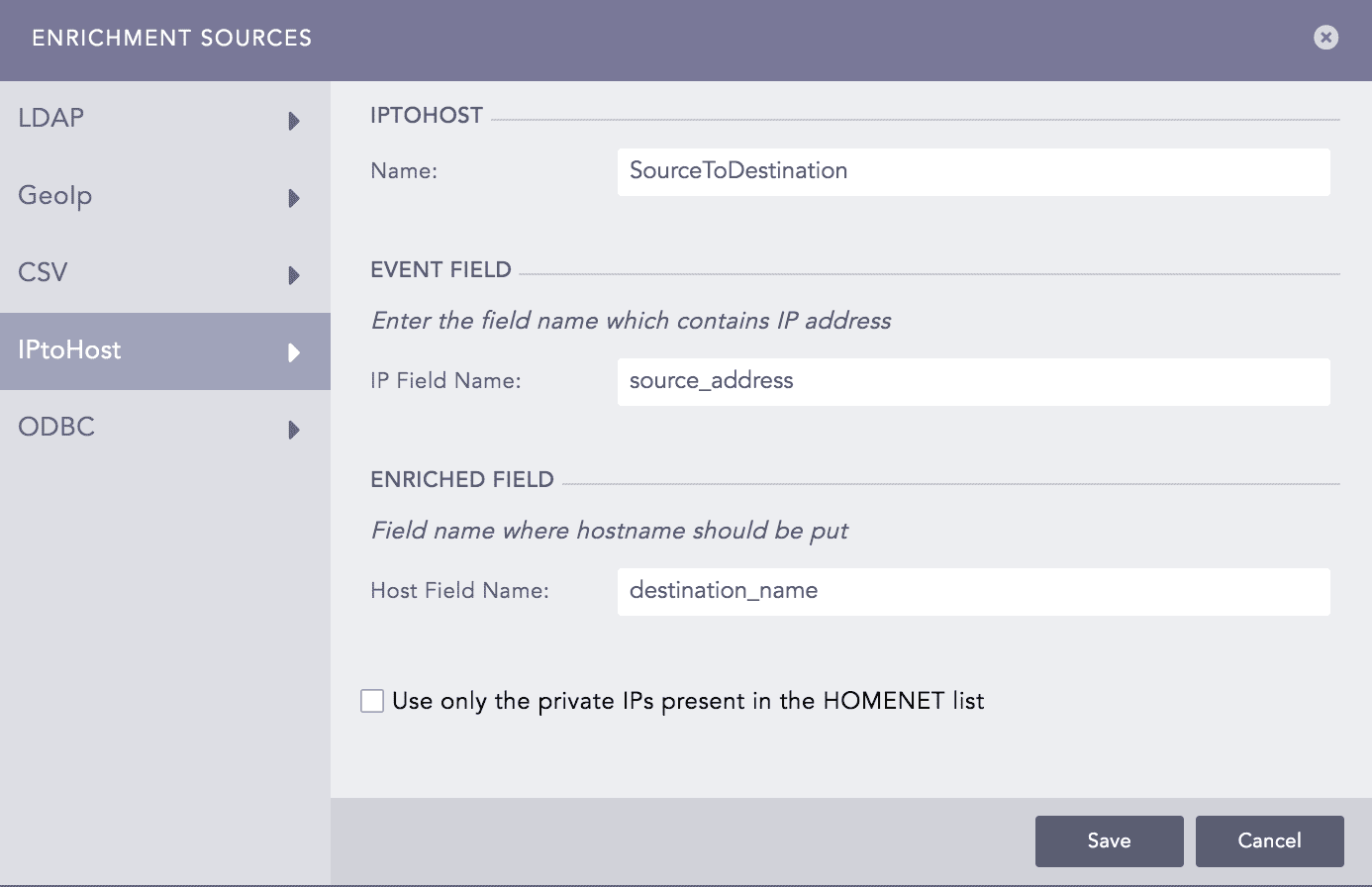
You can use the IPtoHost enrichment source to retrieve a hostname from an IP Address present in an incoming log. Whenever Logpoint receives a log containing an IP Address, it requests a DNS Server to resolve the IP into a hostname. If the DNS succeeds in resolving the IP Address, the hostname is shown as an enriched field in the log. If not, the log remains as it is.
To add IPtoHost as an enrichment source:
Go to Settings >> Configuration from the navigation bar and click Enrichment Sources.
Click Add.
Select IPtoHost.
Adding IPtoHost as an Enrichment Source
Note
If the Use only the private IPs present in the HOMENET list checkbox is enabled, Logpoint enriches only the logs with the IP field name present in the HOMENET list.
Enter a Name.
In IP Field Name, enter the field name which contains an IP Address.
In Host Field Name, enter the field name where the hostname should be kept.
Click Save.
Go to Settings >> Configuration from the navigation bar and click Enrichment Sources.
Click Add.
Select ODBC.
Enter a Name.
Select a Charset and a Driver.
Note
If you choose the MSSQL driver, a checkbox for Windows Authentication appears. If you select the checkbox, enter the domain of the Windows machine.
Enter Server and Port of the database server.
Enter a Database name.
Enter Username and Password.
Enter the SQL Query to fetch data.
In Enrichment Options, select Age Limit and Update Interval. Age Limit is the validation limit of the source data and Update Interval defines the interval to read the source data.
Select Type.
Select Update to modify the ODBC connection, or Replace to restore the existing connection.
Enter Increment Key, Increment Key Table, and New Line Separator. These values are required only for the Update type.
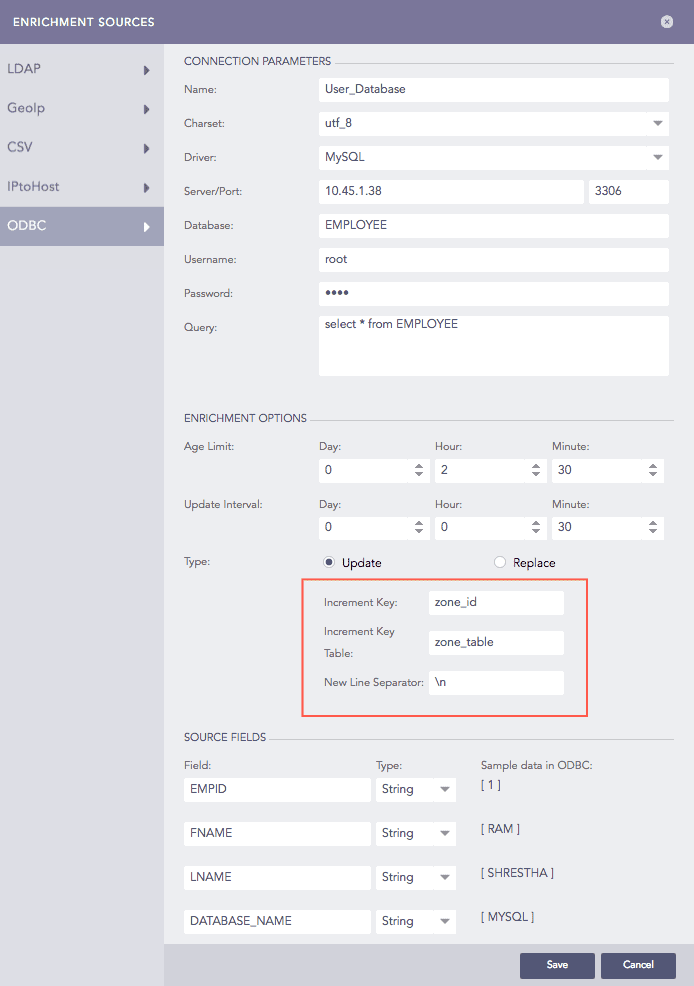
Increment Key indicates the value of the primary key field to be created automatically each time a new record is inserted. The Increment Key must always be an integer.
Increment Key Table indicates the table in which the Increment Key belongs to.
New Line Separator indicates the character that separates the values in the database.
SOURCE FIELDS filled once you enter the correct values to all the fields of the CONNECTION PARAMETERS.
Click Save.
Go to Settings >> Configuration from the navigation bar and click Enrichment Sources.
Select the required enrichment source and update the information.
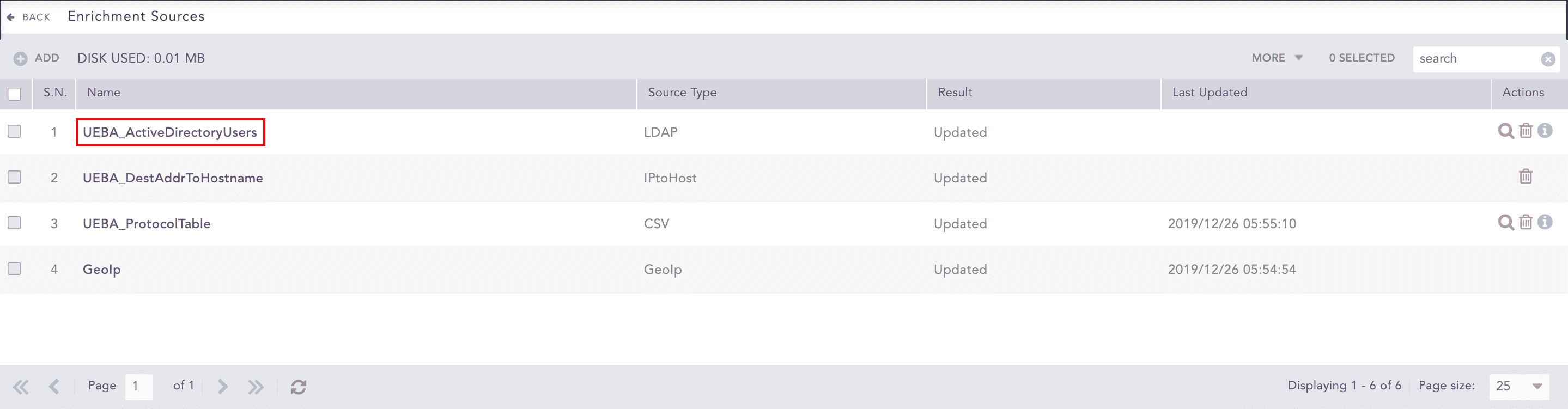
Enrichment Source
Click Save.
Go to Settings >> Configuration from the navigation bar and click Enrichment Sources.
Click the Delete icon under Actions.
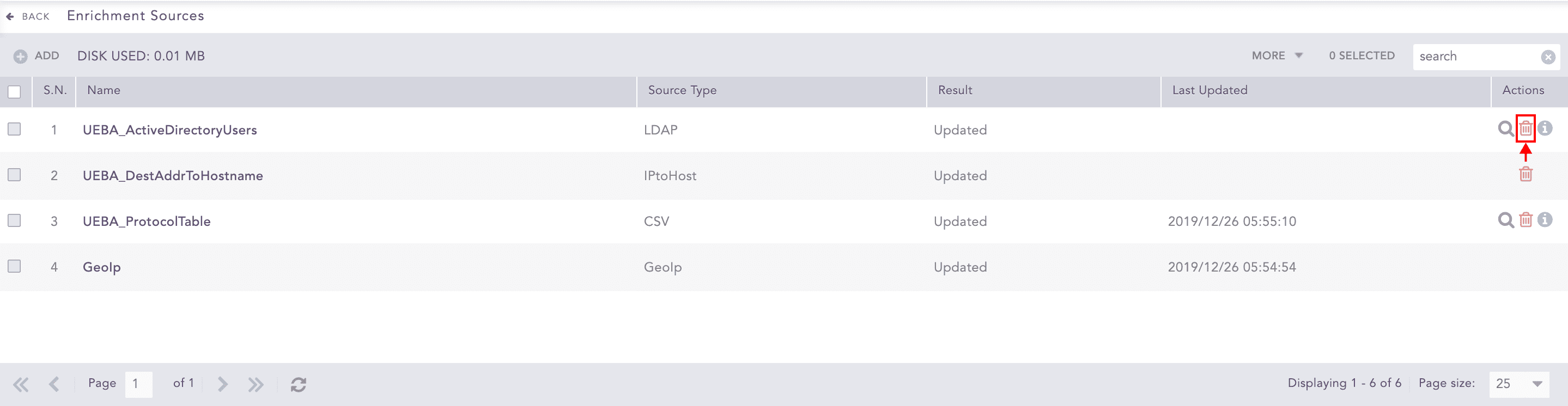
Enrichment Sources
To delete multiple enrichment sources, select the sources, click More and choose Delete Selected.
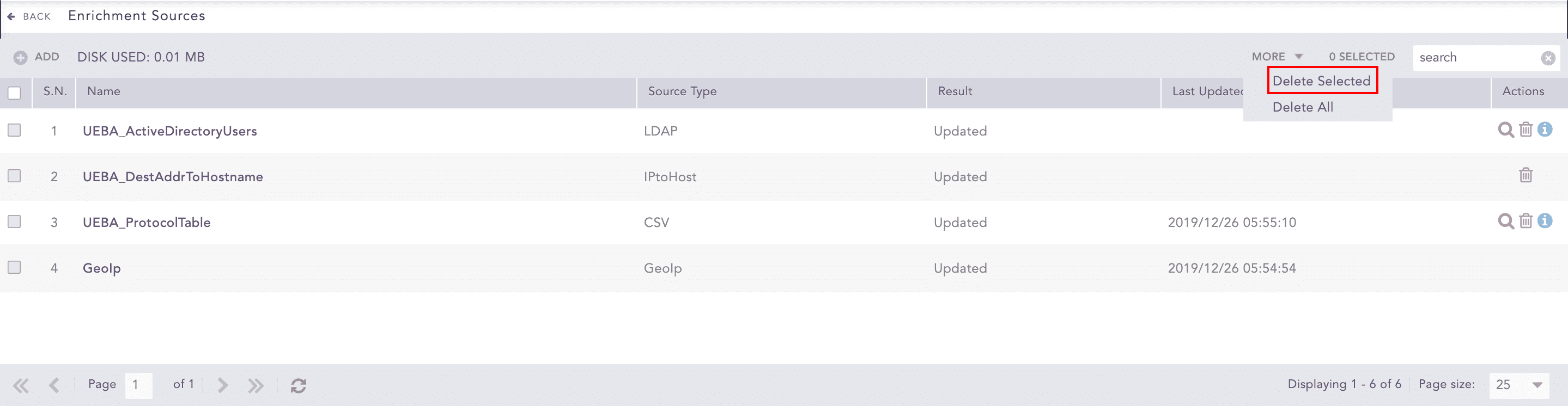
Deleting selected Enrichment Source
To delete all the enrichment sources, click More and choose Delete All.
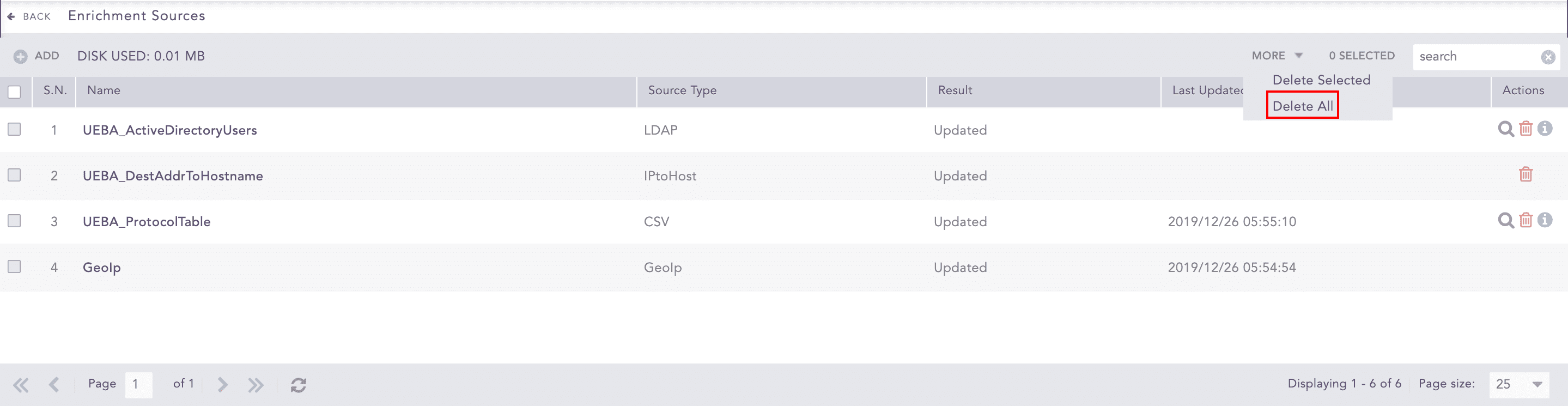
Deleting all Enrichment Sources
Click Yes to confirm deletion.